
Miládka writes her notes mainly for herself, but they are plain text files in your folder. Obsidian is a program for reading and writing exactly that kind of notes. Miládka doesn't need it and works without it. But whoever opens it after a few weeks sees for the first time what Miládka has built for them in that time: who is who, what they are dealing with whom about, and how things fit together.
Karel DerflWhat you'll see in it
- Notes you can read. Profiles of people, projects, notes from meetings. The links between them can be clicked through.
- The graph. A map of the whole folder: every note is a dot, every link a line. Whoever or whatever comes up often is bigger.
- Search across everything. A name, a company, a topic, all in one place.
- Your own notes. You can write too. Miládka sees the changes the next time she works with the folder.
Step 1 - Download Obsidian
Open obsidian.md and download the version for your computer. The installation is the usual one, just confirm. Obsidian is free, even if you use it for work.
Step 2 - Open Miládka's folder
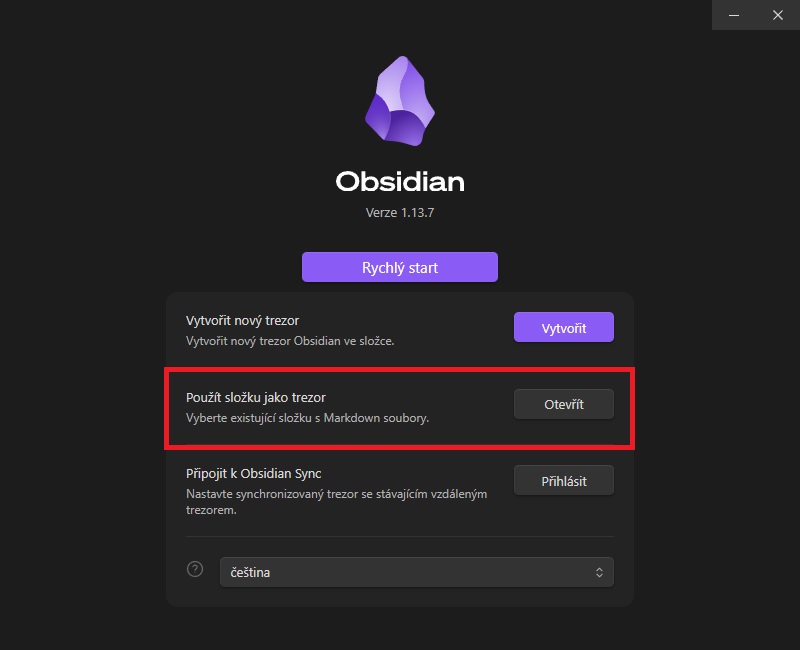
After starting it, choose Open folder as vault, click Open and select the miladka folder. If you don't know where it is, ask Miládka.
Obsidian creates its own settings in the folder (.obsidian). They don't go into the backup, Obsidian keeps them on each computer by itself. You won't see Miládka's rules or the add-ons, they sit in hidden folders. You only see what is yours.
Step 3 - Open the graph
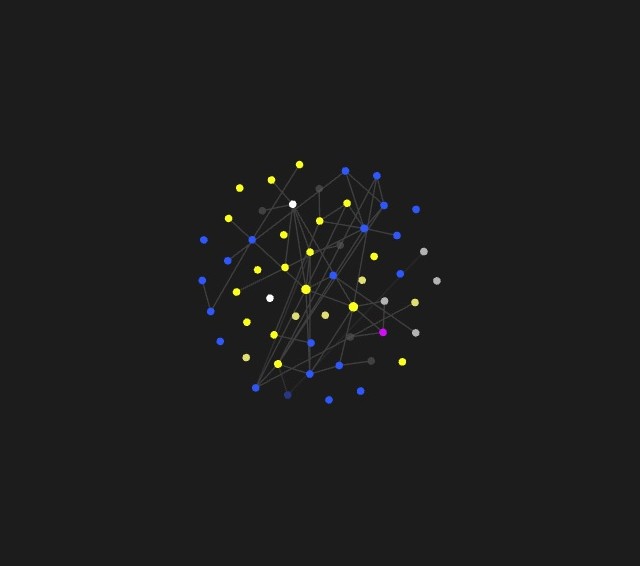
In the left strip, click the Open graph view icon. At first the graph is small. After a few weeks with Miládka it becomes a map of your work: the people you deal with most in the middle, projects around them.
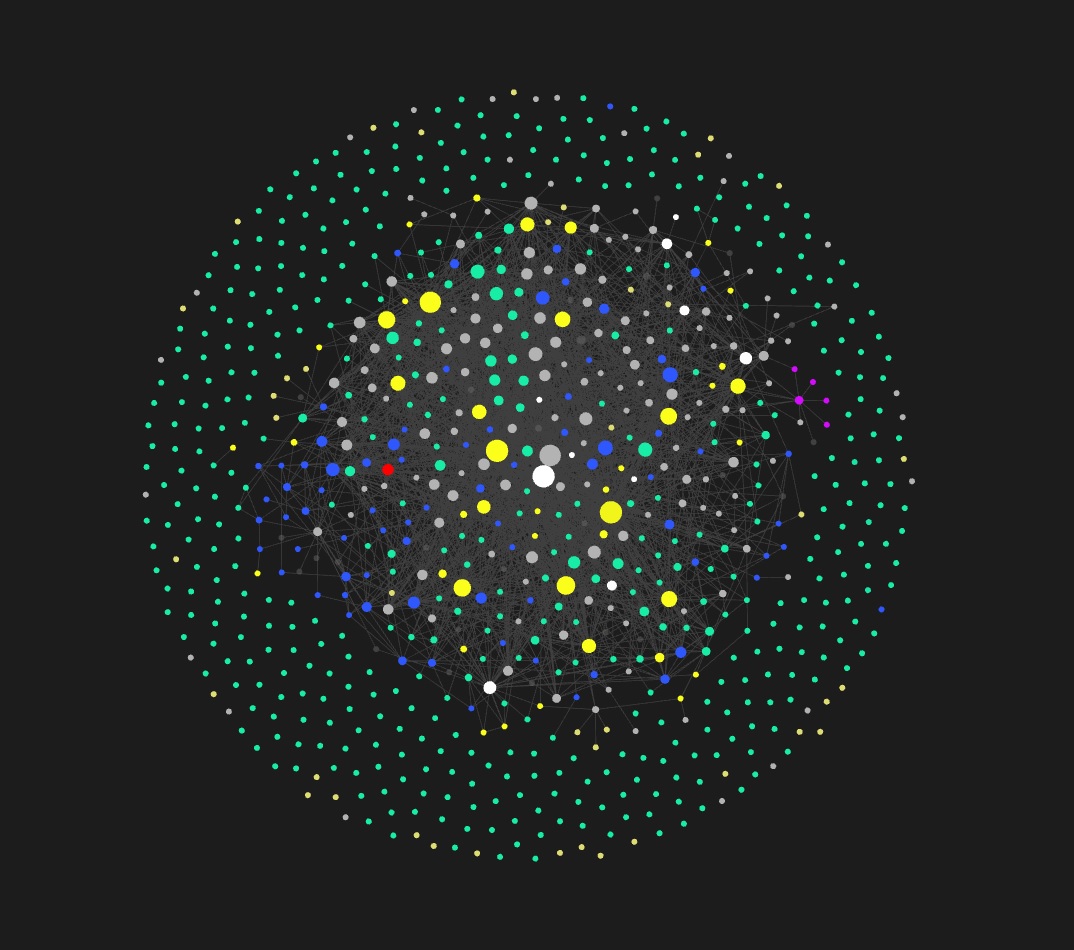
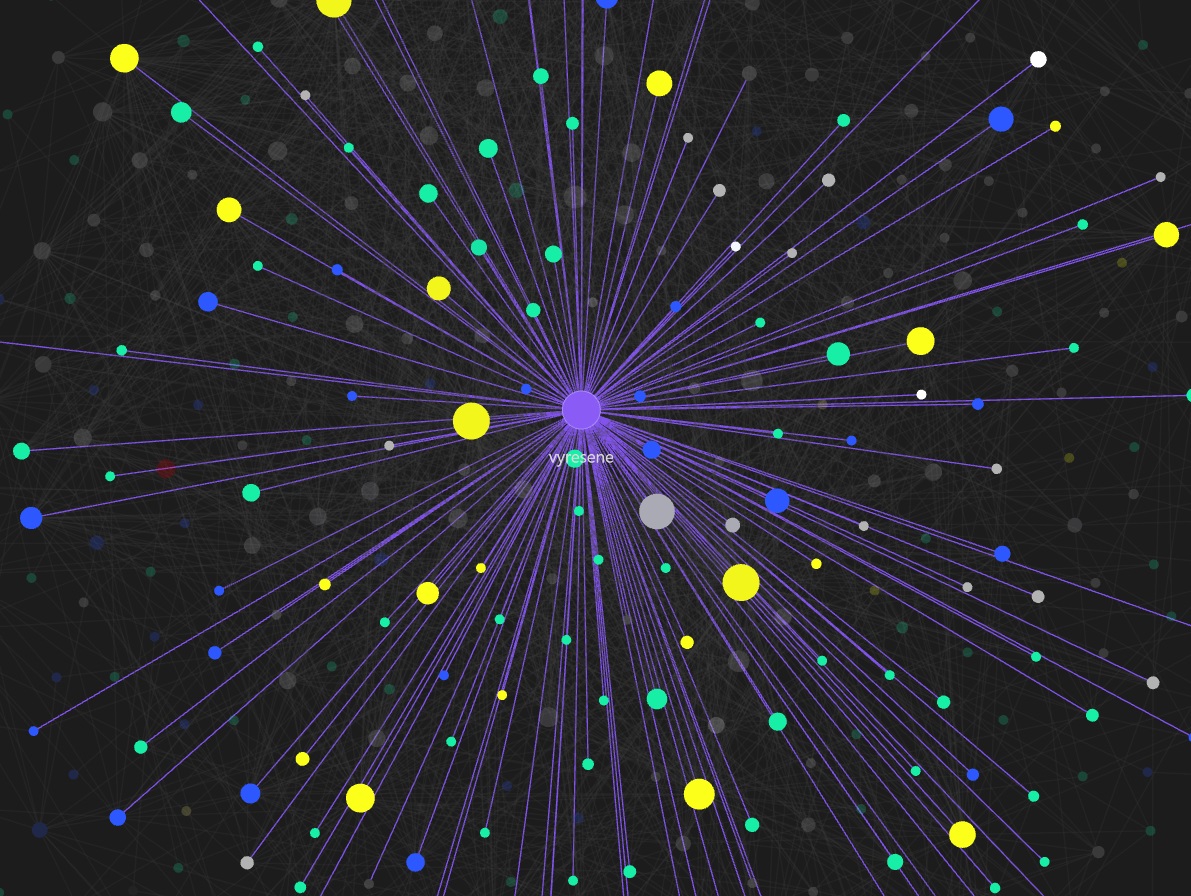
When you hover over a dot, the graph highlights everything it is connected to. You can set colours in the graph settings, say people in one colour and projects in another.
Web Clipper: web pages into Miládka
Obsidian also has a browser extension, Web Clipper. Free, for Chrome, Safari, Firefox, Edge and others. With one click it saves the text of a web page as a note in your folder.
In the extension's settings, change the folder for saving from Clippings to inbox/clippings. Once you have saved something, tell Miládka "process what I saved". She writes down what is of value and connects it with the people and projects she already knows.